> For the complete documentation index, see [llms.txt](https://docs.hockeystack.com/llms.txt). Markdown versions of documentation pages are available by appending `.md` to page URLs; this page is available as [Markdown](https://docs.hockeystack.com/marketing-intelligence/breakdowns.md).
# Breakdowns
### Overview
Breakdowns help you slice your funnel data by specific fields, like country, industry, or custom dimensions.
### Prerequisites
* Your CRM integrations are connected and syncing (Salesforce, HubSpot, etc)
* You know the exact **Integration > Object > Field** you want to use
### Steps
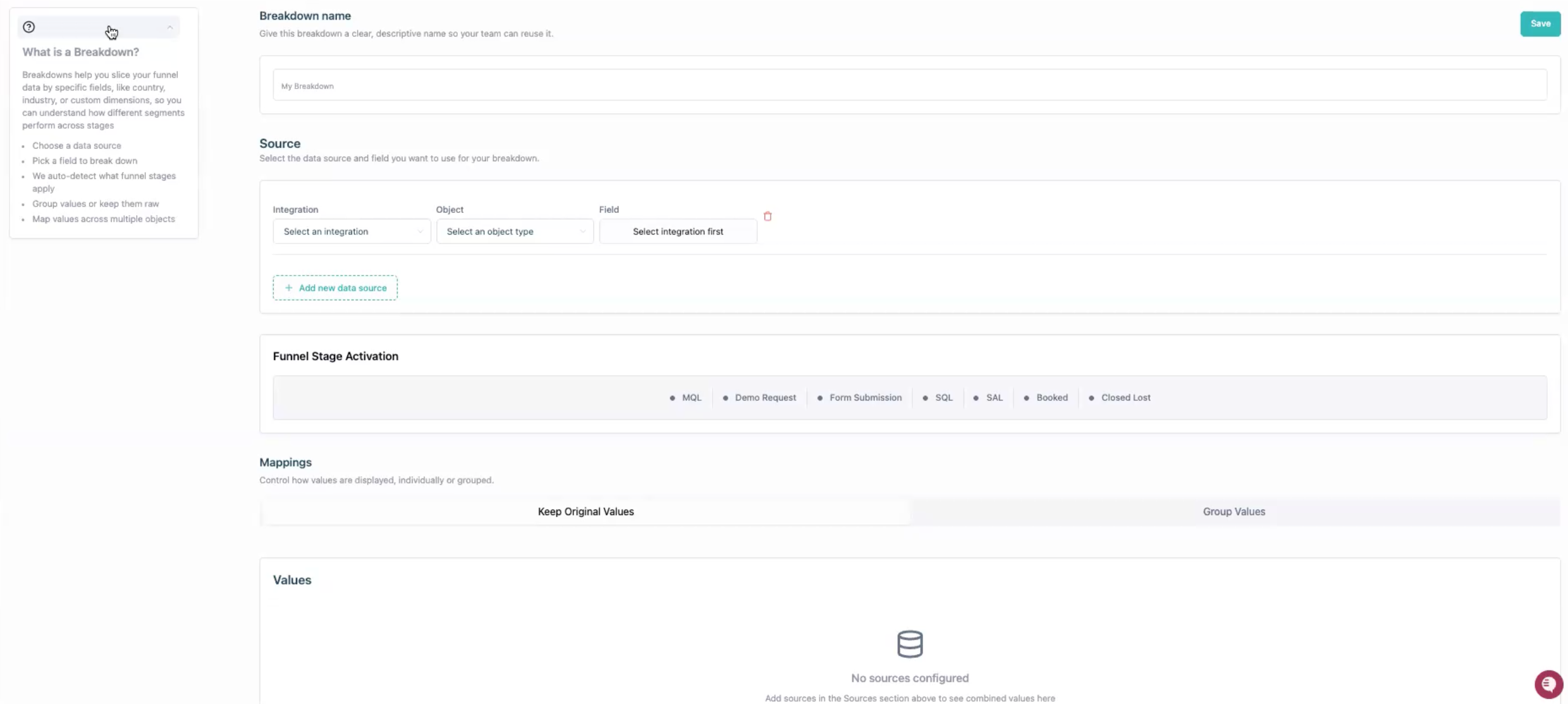
1. Go to: **Definitions** > **Breakdowns** and click **+ New Breakdown**
2. Give your breakdown a name
Example: `Territory`
3. Pick your **Integration > Object > Field** in the **Source** section \
Example: `Salesforce > Account > Territory`
1. To use multiple fields in one breakdown, click **+ Add new data source** and select the data you want to add
2. You can also use **Website** data as a base for your breakdown
4. Review Funnel Stage Activation\
The breakdown will only apply to the highlighted goals. So if you filter your data by a breakdown value, the filter will affect only the highlighted Funnel Stages\
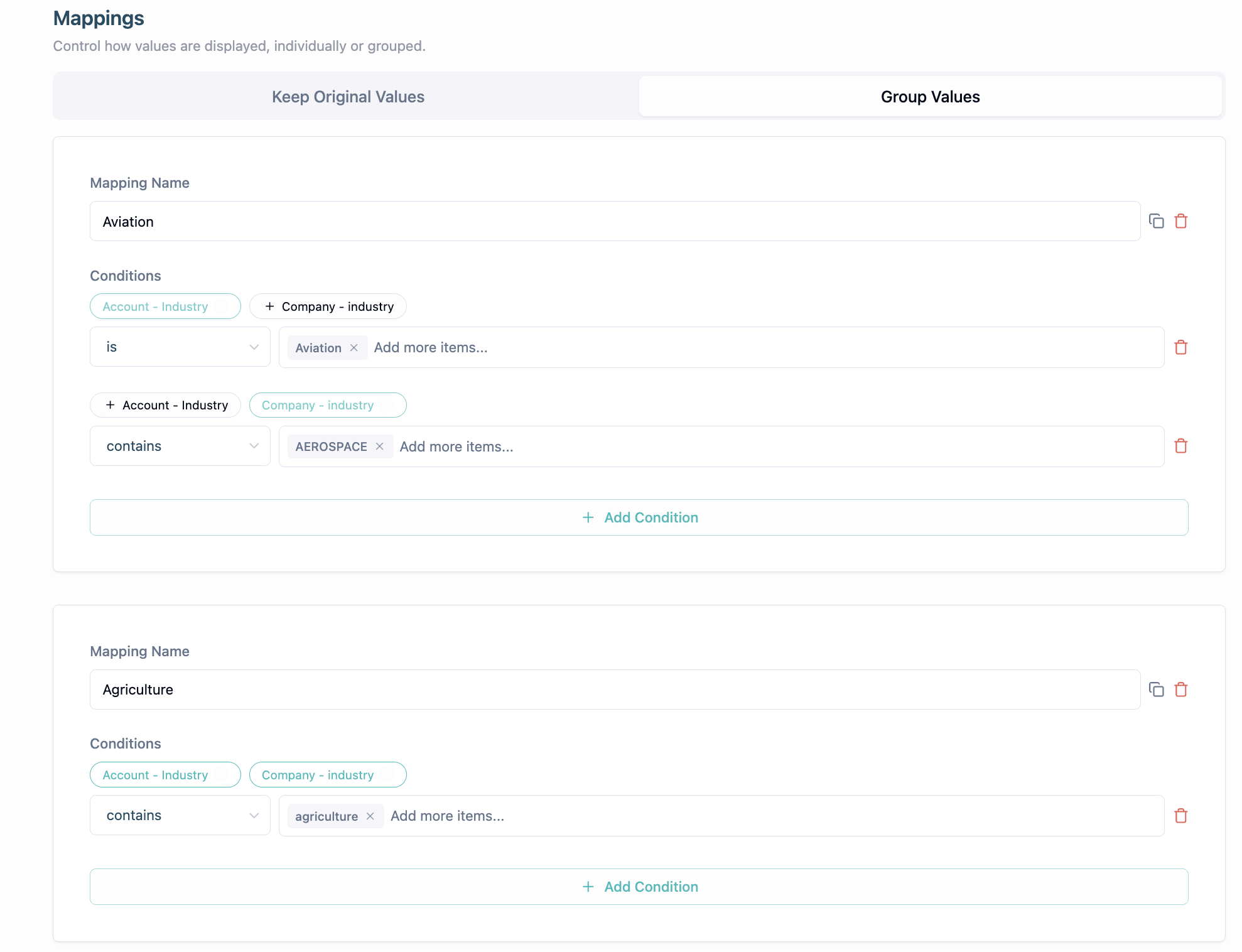
5. Create mappings (two options):
* **Keep Original Values**
* If you prefer the raw values from the source without grouping, select **Keep Original Values**
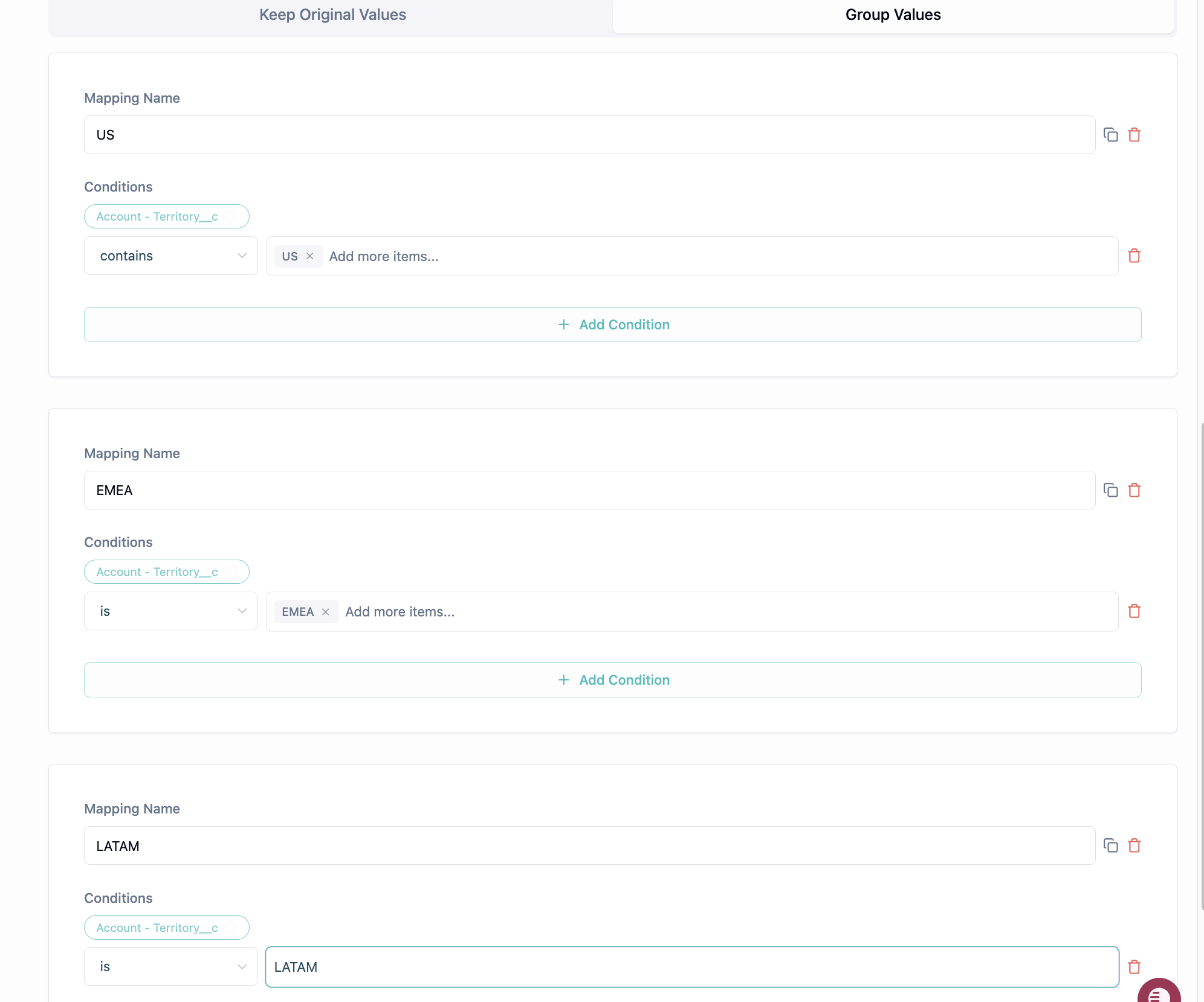
* **Group Values** (recommended for tidy reporting)
1. Click **Group Values** under **Mappings**
2. Click **+ Add group** and name the group (this name shows in reports)
3. **Select source(s)** to include for this condition
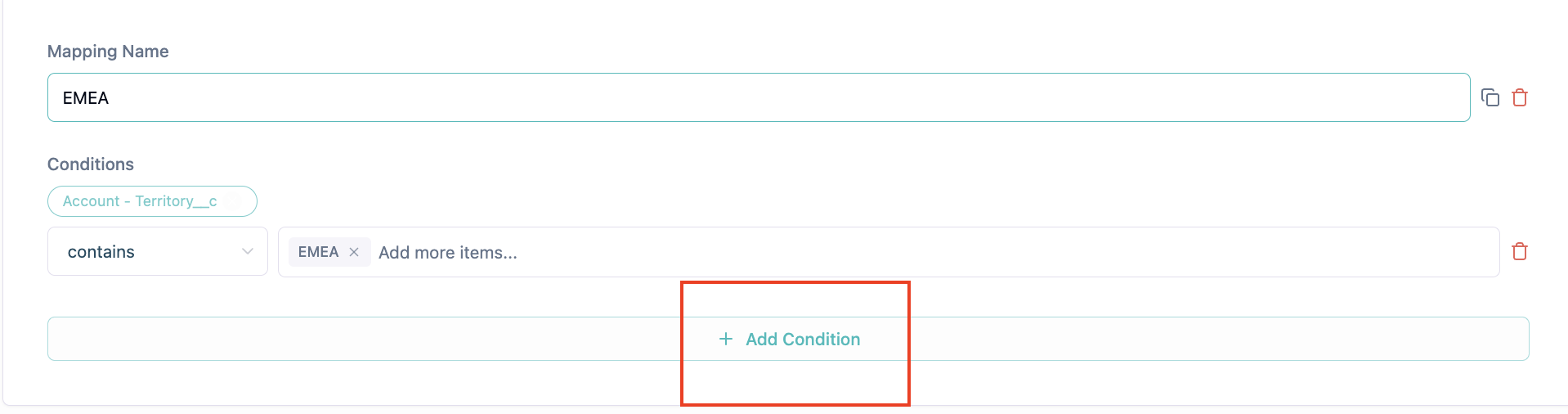
4. Define the **logic/conditions** for which raw values will go in this group (e.g., `Territory contains West, Pacific NW`)
1. *(Optional)* **+Add Condition** creates an AND condition to check for this group
5. Repeat for each group you need
6. *(Optional)* Toggle **Group unmapped values to 'other'** to bucket any remaining values into **Other**. Otherwise the unmapped values will be skipped in your breakdown
6. Save the breakdown
* After saving, allow **5–10 minutes** for the Breakdown to finish initializing and become available across applicable reports.
### Troubleshooting
* Multiple objects or sources: If your Breakdown uses relation properties, allow 24–48 hours for relation mappings to complete.
* No values appearing: Verify if your data source is correct, synced and populated
* Check permissions and data freshness in the integration settings.
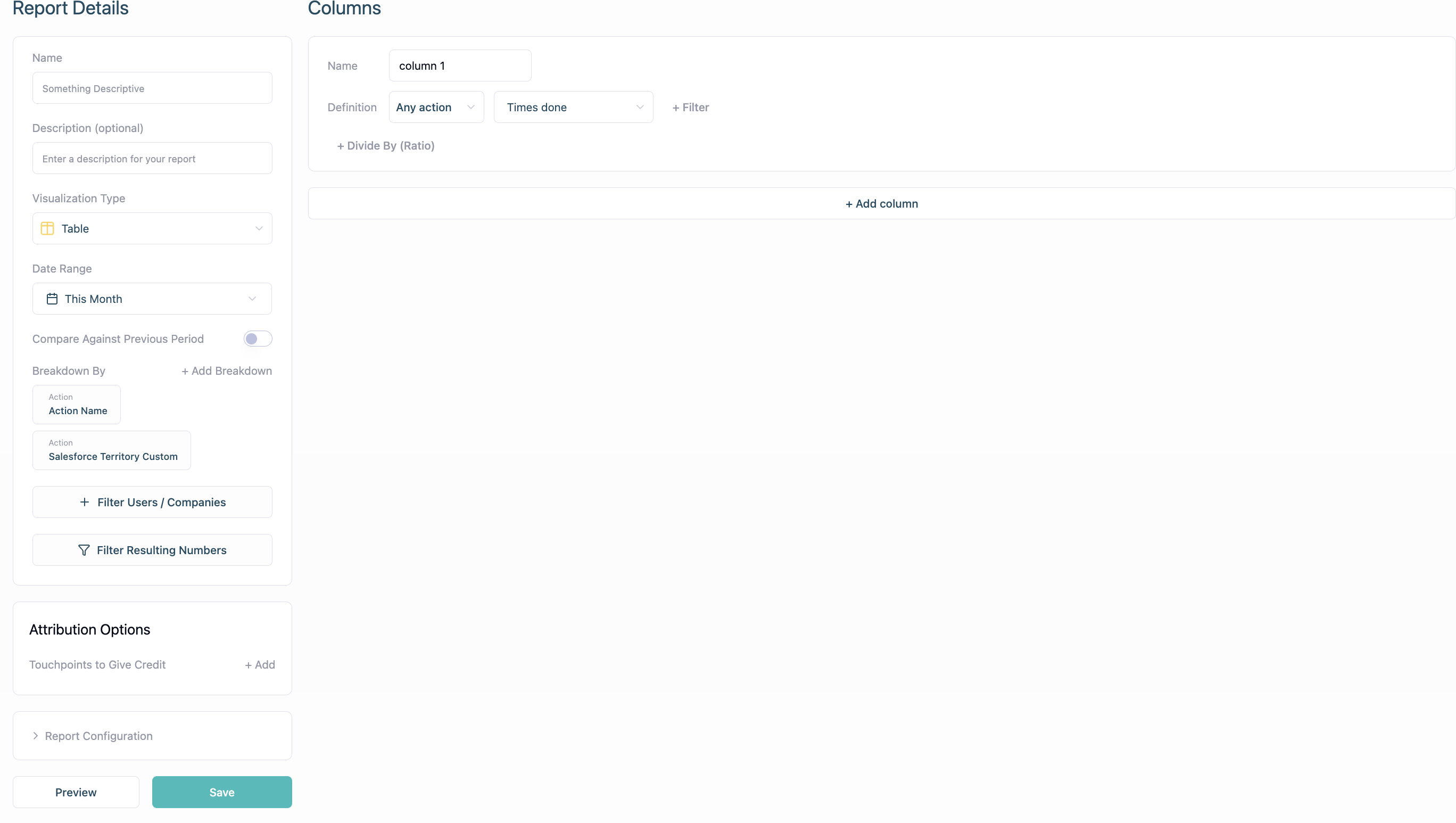
* Create a report using Any Action (Times Done). Breakdown by Action Properties - Action Name and the **Field** you are trying to use in your Breakdown, and check if the data source you're using contains the values you expect
* **Unexpected values in “Other”**: Review your **Group Values** logic for typos, or missing mappings
* Example: `US West` vs `US-West`
* **Mis-mapped values:** Grouping conditions apply top-to-bottom. Values will be mapped to the first condition that it satifies, it will not be mapped to multiple
* Put more specific mappings near the top to avoid accidentally mis-mapping
### Examples
* **Single source**: `Salesforce > Account > Territory` grouped into `North America`, `EMEA`, `APAC`, `Other`.
* **Multi-source**: `HubSpot > Company > Industry` + `Salesforce > Account > Industry` unified into a single `Industry` Breakdown with consolidated buckets.
## Self-migration
To get the most out of HockeyStack, we’re asking you to self-migrate your filters and breakdowns to the new Breakdowns section. The whole process should only take a few minutes.
#### How to migrate?
1. Identify all the breakdown defined properties. These are the ones marked as “Include in filters” that are *not* touchpoints (so exclude channel, asset, etc.).
2. Rename each property you plan to migrate by adding **\[OLD]** to its name.
3. Go to the Breakdowns page and create a new breakdown for each property you're migrating.
4. Replace the old defined properties with your new breakdowns.
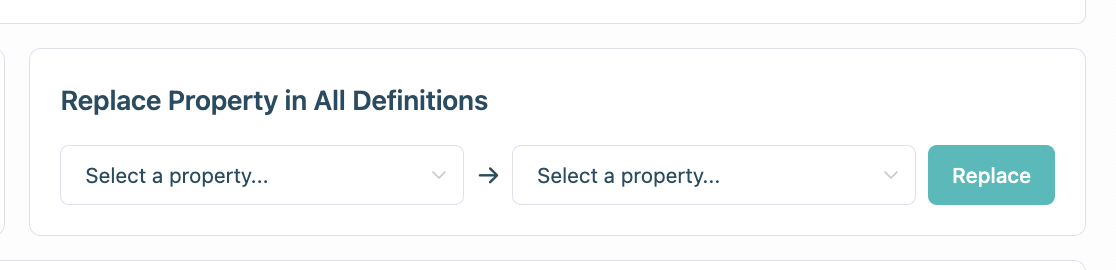
5. Navigate to **Settings → Reporting and Tracking → Replace Property in All Definitions**.
6. In the first dropdown, select the property marked with **\[OLD]** and replace it with the correct breakdown.
7. Repeat this for every property you’re migrating.
8. Once everything is replaced, delete the old defined properties.
If you run into any edge cases that can’t be mapped in the new Breakdowns view, please reach out to [**support@hockeystack.com**](mailto:support@hockeystack.com)!
---
# Agent Instructions
This documentation is published with GitBook. GitBook is the documentation platform designed so that both humans and AI agents can read, navigate, and reason over technical content effectively. Learn more at gitbook.com.
## Querying This Documentation
If you need additional information that is not directly available in this page, you can query the documentation by asking a question.
Perform an HTTP GET request on the following URL with the `ask` and `goal` query parameters:
```
GET https://docs.hockeystack.com/marketing-intelligence/breakdowns.md?ask=&goal=
```
`ask` is the immediate question: it should be specific, self-contained, and written in natural language.
`goal` is what the user is ultimately trying to achieve, the reason they need the answer. Sharing it helps GitBook give you a better, more relevant answer. A goal is most helpful when it describes the outcome the user wants rather than restating the question. For example, with `ask=how do I create an API token`, a goal like `automate deployments from our CI pipeline` lets GitBook tailor the answer to that use case.
The response will contain a direct answer to the question and relevant excerpts and sources from the documentation.
Use this mechanism when the answer is not explicitly present in the current page, you need clarification or additional context, or you want to retrieve related documentation sections.