> For the complete documentation index, see [llms.txt](https://docs.hockeystack.com/llms.txt). Markdown versions of documentation pages are available by appending `.md` to page URLs; this page is available as [Markdown](https://docs.hockeystack.com/marketing-intelligence/the-hockeystack-data-model/atlas.md).
# Atlas
Your Complete Data Operations Hub
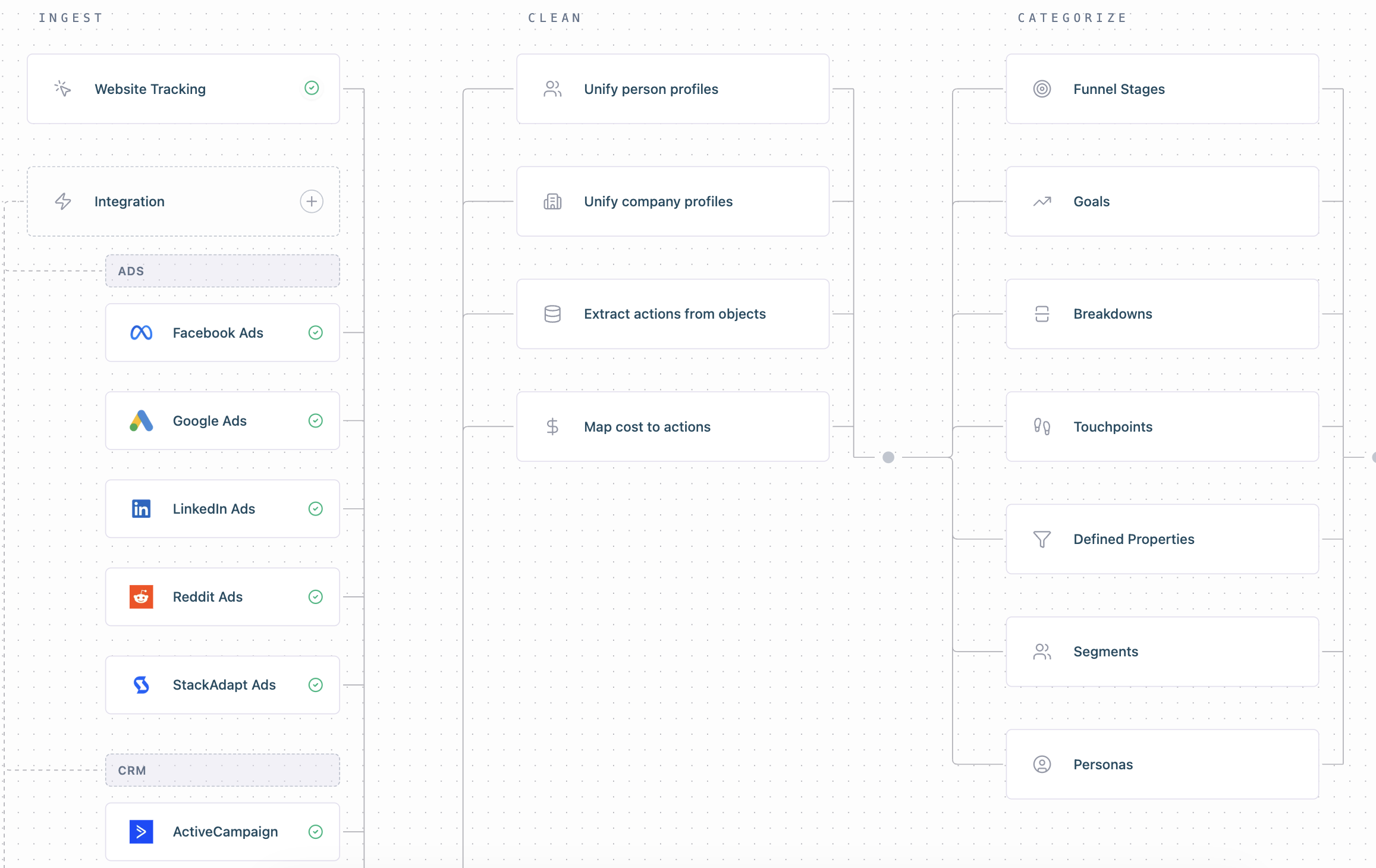
Atlas is HockeyStack's unified configuration page that visualizes and controls the entire data pipeline – from ingestion to export. It presents the complete data flow in a logical, visual interface that matches how data actually moves through the system with configurations as needed.
***
### Why Atlas?
HockeyStack processes your data through a complete pipeline – from ingestion through transformation, categorization, activation, and export. Atlas gives you a single view of this entire flow, so you can:
* See how your data connects: Understand exactly where your data comes from, how it gets unified, and where it powers insights
* Configure everything in context: Manage your entire data pipeline from one place
* Troubleshoot faster: When something isn't working as expected, pinpoint where in the pipeline the issue occurs
***
### Atlas vs. Workspace Settings vs. User Settings
Configuration is now organized into three distinct areas, all available on the sidebar.
| Area | Purpose | Who it affects |
| ------------------ | --------------------------- | ---------------- |
| Atlas | Data pipeline configuration | Admin only |
| Workspace Settings | Workspace administration | Admin only |
| User Settings | Personal preferences | Individual users |
***
### Accessing Atlas and Settings
Atlas is available to users with Admin or Creator permissions. If you are in either group, you can find it in the left sidebar.
Workspace settings is available to users with Admin or Creator permissions. If you are in either group, you can find it in the left sidebar at the top when you click on your instance name.
User settings is available to all individual users. You can find it in the left sidebar at the top when you click on your instance name.
***
### Workspace Settings — Workspace Administration
Settings that affect the entire workspace but aren't part of the data pipeline.
| Section | Description | What's Included |
| -------------------- | -------------------------------------- | ----------------------------------------------------------------------------------------------------------------------------- |
| Domain | Manage your workspace domain settings | Workspace name, tracked domains |
| Reporting & Tracking | Configure tracking and data management | Reporting Configuration, Company Default Properties, Default Attribution Options, Replace in Definitions, Clear account cache |
| Team | Manage team members and permissions | Invite users, permission levels (Creator, Admin, Member, Viewer), SSO configuration, MFA Enforcement |
| Plan & Billing | View and manage your subscription | Subscription details, billing information |
### User Settings — Personal Preferences
Settings that only affect the individual user's experience.
| Setting | Description |
| ---------------- | ------------------------------------------ |
| Profile Settings | Manage your personal information and email |
| Security | Update your password and MFA settings |
| Appearance | Customize your interface theme |
***
### Atlas Sections
### Atlas — The Configuration Canvas
Everything related to how data flows in, transforms, and flows out.
### Atlas > Ingest
Configure all data sources that feed into HockeyStack.
**Website Tracking (Tracking Script + IP blacklist)**
To be able to track your users' website actions, you need to install a HockeyStack tracking script on your website. Follow the instructions on the screen, and if you need more information, check out the Website Tracking.
Keep in mind that you need to add the script separately to each of the connected domains.
**Integrations (CRM, Ad Platforms, Marketing Automation, Sales Engagement)**
**Custom Data Source (Google Sheets, Data Warehouses)**
**Third Party Data Sources (ABM, Enrichment, Gong)**
Connected integrations appear as individual nodes. Click any integration node to open its configuration. Warning indicators (yellow border + icon) appear when authentication expires or sync issues occur.
**Business Context**
Configure business context that helps AI understand your company, product, and market.
**Email Examples**
Provide example emails that help AI generate better sales messaging.
***
### Atlas > Clean
Identity resolution and data transformation rules. These are foundational settings that run automatically.
**Unify Person Profiles**
Unify person profiles using email address (always enabled)
**Unify Company Profiles**
Unify company profiles using company domain (always enabled)
**Extract Actions from Objects**
Opens the TDP (Track Date Properties) configuration - how CRM objects transform into actions.
**Map Cost to Actions**
Map cost to actions using UTM parameters (always enabled)
***
### Atlas > Categorize
Data categorization in HockeyStack helps you organize funnel stages and touchpoints, allowing the platform to interpret your customer journey according to your needs. This impacts multiple features within HockeyStack, providing a clearer, more structured view of your data. It's critical for Odin to work correctly.
**Funnel Stages**
Configure funnel stages (MQL, SQL, Opportunity, etc.)
[Broken mention](broken://pages/Il8LJI9sNNAtPhbVjzog#funnel-stages)
**Goals**
Goals are the business outcomes you're trying to achieve and want to report on. They could be funnel stages such as MQLs, deals closed, or smaller items such as form submissions, or pageviews.
[Goals](/marketing-intelligence/goals.md)
**Breakdowns**
Breakdowns help you slice your funnel data by specific fields, like country, industry, or custom dimensions.
[Breakdowns](/marketing-intelligence/breakdowns.md)
**Touchpoints**
Touchpoints represent the various interactions a customer has throughout their journey. These interactions are categorized in a hierarchical structure, similar to a branching tree.
[Touchpoint Hierarchy](/marketing-intelligence/customer-touchpoint-hierarchy.md)
**Defined Properties**
Each action and entity in HockeyStack can have properties. If goals are nicknames for a group of actions, defined properties are nicknames for a group of properties.
[Defined Properties](/marketing-intelligence/defined-properties.md)
**Segments**
Create segments which are cohorts of users who have done or not done actions/goals in a time frame.
**Personas**
Configure buyer personas for stakeholder classification.
***
### Atlas > Activate
This section is where you configure for things where HockeyStack turns data into insights and automation.
**Odin Scheduled Insights**
Odin lets you schedule an automated cadence of emails with your most important metrics analyzed.
[Scheduled prompts](/marketing-intelligence/odin-ai/scheduled-prompts.md)
**AI Research Agents**
**Workflows**
It is the automation engine, important to scale operations. Think of a Workflow as an "if this, then that" engine, but supercharged for B2B ops.
[Workflows](/account-intelligence/workflows.md)
**Account Engagement Scoring**
Configure Custom Prompts for scoring models.
**AI-based Attribution**
***
### Atlas > Export
Data destinations and outbound syncs.
**Salesforce - Touchpoints Sync**
Configure touchpoint sync to Salesforce. View and manage Salesforce object sync status. Resync objects from the beginning if needed.
[Salesforce](/account-intelligence/getting-started/salesforce.md#workflow-destination-documentation)
**Salesforce - iFrame**
Configure the embedded iFrame for Salesforce.
[Salesforce iFrame Installation](/account-intelligence/getting-started/salesforce/salesforce-iframe-installation.md)
**Slack - Alerts**
Configure Slack alerts for sales notifications.
**Slack - Odin**
Connect Odin to Slack channels.
**Sales Engagement Integrations**
Connect different sales engagement platforms like Apollo, Outreach, etc.
**API Info**
View API documentation and manage API tokens.
[Broken mention](broken://pages/8IvURxf4gprTKHJYJpUQ)
**Custom Data Destinations (DataSyncs)**
Configure DataSync exports to warehouses and webhooks.
***
### Node States and Warnings
| State | Appearance | Meaning |
| -------------- | ---------------------------- | ------------------------------------------ |
| Configured | Standard card with icon | Active and healthy |
| Warning | Yellow border + warning icon | Needs attention (expired auth, sync error) |
| Not configured | "+ Add" button | Available but not set up |
---
# Agent Instructions
This documentation is published with GitBook. GitBook is the documentation platform designed so that both humans and AI agents can read, navigate, and reason over technical content effectively. Learn more at gitbook.com.
## Querying This Documentation
If you need additional information that is not directly available in this page, you can query the documentation by asking a question.
Perform an HTTP GET request on the following URL with the `ask` and `goal` query parameters:
```
GET https://docs.hockeystack.com/marketing-intelligence/the-hockeystack-data-model/atlas.md?ask=&goal=
```
`ask` is the immediate question: it should be specific, self-contained, and written in natural language.
`goal` is what the user is ultimately trying to achieve, the reason they need the answer. Sharing it helps GitBook give you a better, more relevant answer. A goal is most helpful when it describes the outcome the user wants rather than restating the question. For example, with `ask=how do I create an API token`, a goal like `automate deployments from our CI pipeline` lets GitBook tailor the answer to that use case.
The response will contain a direct answer to the question and relevant excerpts and sources from the documentation.
Use this mechanism when the answer is not explicitly present in the current page, you need clarification or additional context, or you want to retrieve related documentation sections.